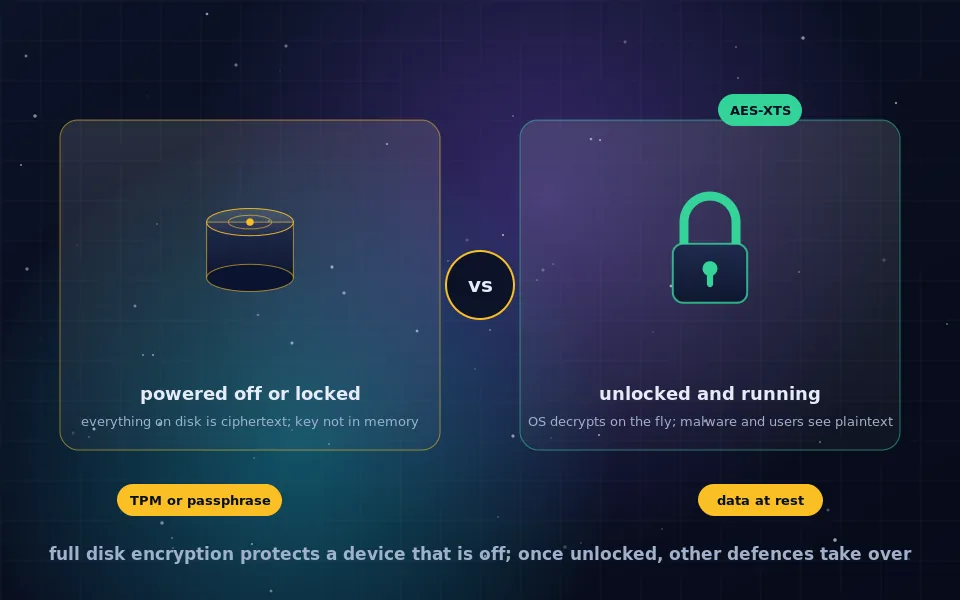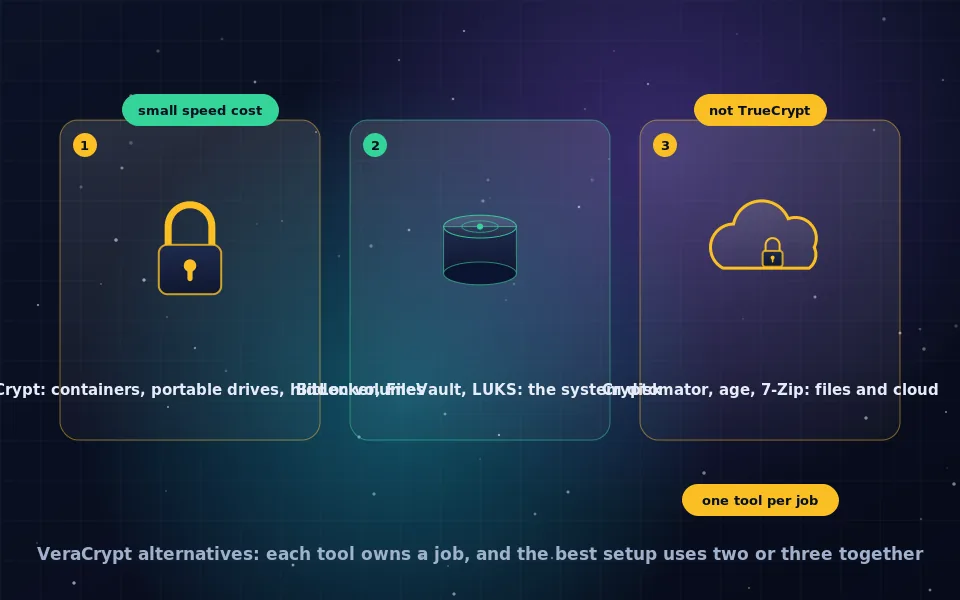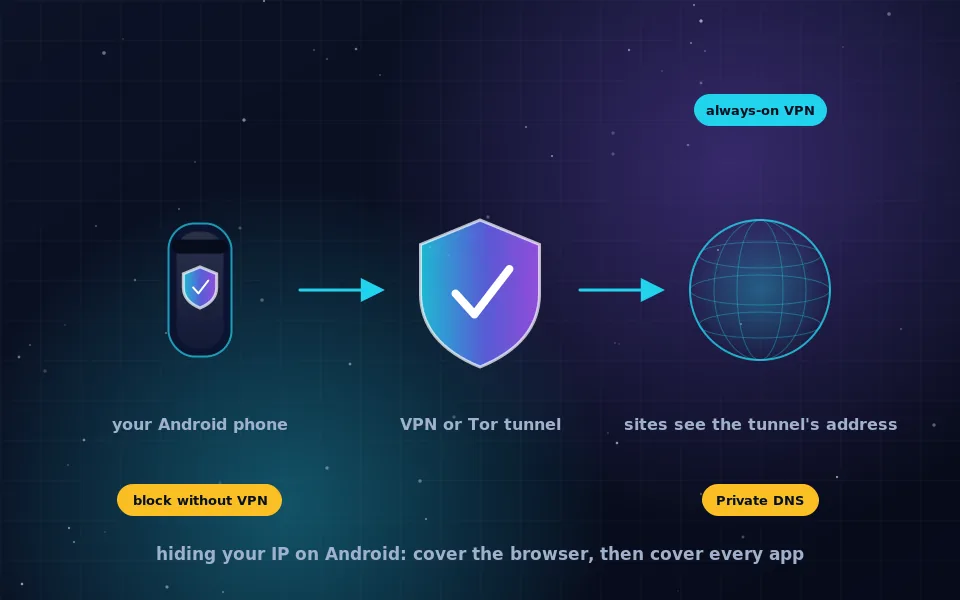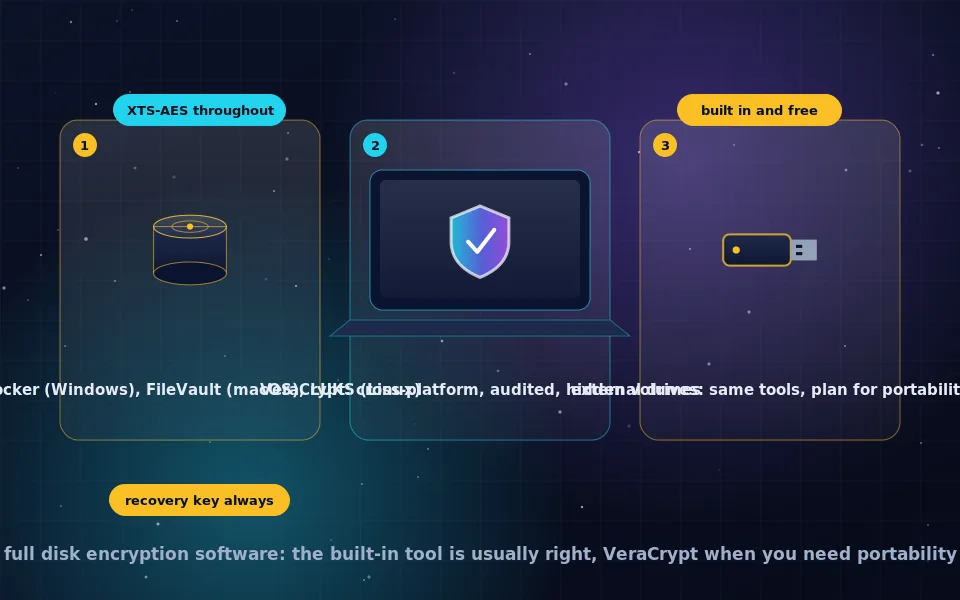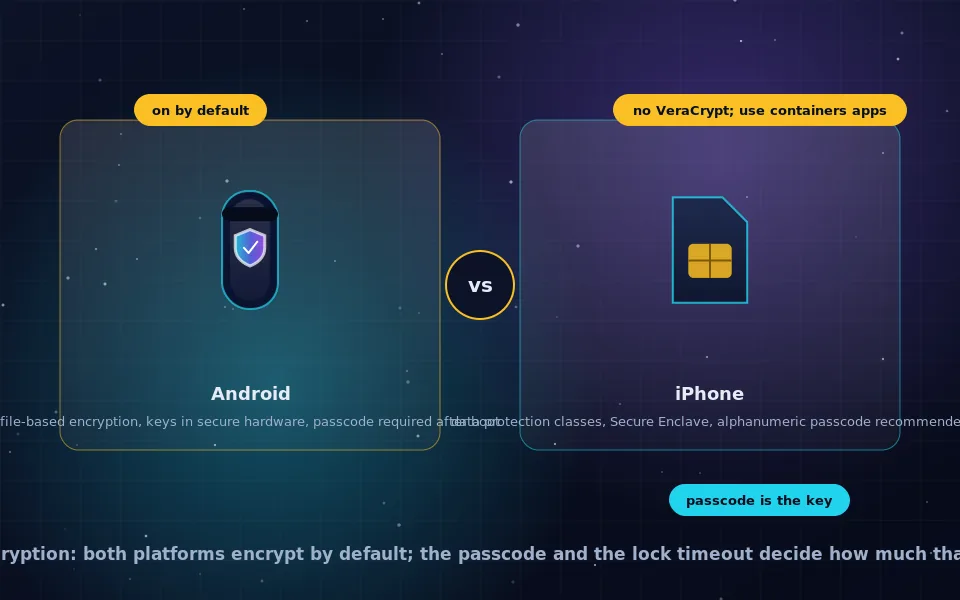
Android and iPhone both encrypt their storage by default, using keys held in secure hardware and tied to your lock screen passcode, so a locked phone protects its data much as an encrypted laptop does and an unlocked one does not. Modern Android uses file-based encryption rather than the older full-disk encryption, and iPhone uses Data Protection with per-file keys bound to the passcode. To encrypt specific files with an extra layer, use a vault app such as Cryptomator on either platform. VeraCrypt does not run on Android or iOS; on Android the third-party EDS app can open VeraCrypt containers, and on iOS nothing can.
Phones hold more personal data than most laptops and are lost far more often, which makes their encryption model worth understanding rather than assuming. This guide explains how Android encryption evolved from full-disk to file-based, how iPhone Data Protection works, why the passcode is the actual key, how to encrypt files on each platform, what VeraCrypt users should use on mobile, and the settings that make phone encryption effective.
Android: from full-disk to file-based encryption
Early Android offered full-disk encryption, FDE, in the traditional sense described in the full disk encryption guide on this site: one key for the whole partition, entered at boot before anything ran. It had a practical problem. Until the user typed the passcode, the phone could not receive calls, ring alarms or run accessibility services, because nothing was readable.
Modern Android replaced it with file-based encryption, FBE. Each file is encrypted with its own key, and files are grouped into two areas. Device-encrypted storage holds what the system needs before the first unlock, protected by a key available at boot. Credential-encrypted storage holds user data, protected by keys that are derived only after you enter your passcode, PIN or pattern. Different users and work profiles get separate keys. The phone can boot, ring and run essential services while personal data stays locked until you unlock it. Android has required encryption on new devices since Android 6 for capable hardware and mandates FBE on devices launching with recent versions. Settings, Security, Encryption and credentials shows the status; on current devices it simply reads encrypted.
The keys live in hardware, a Trusted Execution Environment or a dedicated security chip on higher-end phones, which enforces delays after failed attempts so that a short PIN cannot be brute-forced quickly. Adiantum provides encryption on low-end devices lacking AES hardware acceleration.
iPhone: Data Protection and the Secure Enclave
Every iPhone encrypts its flash storage with a hardware key unique to the device, held in the Secure Enclave and never exposed. Apple's Data Protection layers per-file keys on top, organised into classes. Files in the most protected classes have keys that are wrapped with a key derived from your passcode and are unavailable until you unlock after a restart, or whenever the phone is locked, depending on class. Files needed for background operation use classes available after the first unlock.
The Secure Enclave enforces an escalating delay after wrong passcodes and can erase the phone after ten failures if you enable that option, which is why even a six-digit passcode resists brute force in a way no laptop password does without hardware help. A longer alphanumeric passcode raises the bar further and is recommended for anyone whose phone might be subjected to forensic tools, which have periodically exploited weaknesses in older devices and versions.
The passcode is the key
On both platforms, the encryption itself is not what an attacker attempts to break. The attacker tries the passcode, or waits for the phone to be unlocked. That leads to a few consequences.
- A four-digit PIN with hardware throttling is far better than nothing, and a six-digit or alphanumeric passcode is meaningfully better.
- Biometrics unlock convenience, not security. A face or fingerprint can be presented without consent. Both platforms offer a way to quickly disable biometrics and require the passcode; learn it for your phone.
- A phone that has been unlocked once since boot holds more keys in memory than one freshly restarted. Restarting before a border crossing or handing over a phone returns it to the more protected state.
- Backups matter. An Android backup to Google or an iPhone backup to iCloud without Advanced Data Protection is readable by the provider; local encrypted backups or end-to-end encrypted cloud backups keep the protection.
Encrypting files on Android
Storage is encrypted already, so the purpose of encrypting specific files is defence in depth: protection when the phone is unlocked, when files sync to a cloud, or when you share them.
- Vault apps. Cryptomator encrypts files individually in a vault that can live locally or in a cloud folder, as the cloud encryption guide on this site describes. Other vault apps exist; prefer open-source ones.
- Manufacturer secure folders. Some phones offer a secure folder that is a separate encrypted profile with its own lock. It protects against someone using your unlocked phone, and relies on the manufacturer's implementation.
- Individual file encryption. OpenKeychain encrypts files with PGP to share with a correspondent or to store, as the PGP guides on this site cover.
- Encrypted archives. Several archive apps create password-protected 7z or ZIP files with AES-256 for sending.
- Encrypted notes. For text, an end-to-end encrypted notes app, covered in the notes guide on this site, is simpler than encrypting files.
Encrypting files on iPhone
The same layered approach applies, with iOS constraints.
- Vault apps. Cryptomator for iOS integrates with the Files app and encrypts per file in local or cloud vaults.
- iCloud Advanced Data Protection. Turning it on in Settings makes iCloud Drive, Photos, Notes, backups and most other categories end-to-end encrypted, so files synced to iCloud are no longer readable by Apple. Save the recovery key or set a recovery contact, since Apple can no longer recover the account data.
- Document passwords. Pages, Numbers, Keynote and PDF apps can password-protect individual documents with encryption.
- Encrypted archives. Third-party apps create password-protected archives; the Files app opens encrypted ZIPs made elsewhere.
- Locked notes. Apple Notes can lock individual notes with a password or the device passcode.
VeraCrypt on Android and iOS
VeraCrypt publishes versions for Windows, macOS and Linux only. There is no official VeraCrypt for Android and none for iOS, and nothing on the App Store opens VeraCrypt volumes.
On Android, the third-party app EDS, in its full version, can mount VeraCrypt containers and standard encrypted volumes, which is the practical way to carry a VeraCrypt container on a phone or read one from a USB drive attached via adapter. Read the VeraCrypt alternatives guide on this site for the trade-offs.
On iOS, there is no way to open VeraCrypt volumes. For files that must be available on an iPhone, use Cryptomator, whose vaults open on every desktop and mobile platform, or export specific files from the container on a desktop and encrypt them with a mobile-friendly tool. If you rely on VeraCrypt on your computer and want the same data on your phone, Cryptomator is the closest cross-platform equivalent, as the VeraCrypt alternatives guide discusses.
A seven-point phone encryption checklist
- Confirm encryption is on: Android Settings, Security, Encryption; iPhone shows Data protection is enabled at the bottom of the Face ID or Touch ID and Passcode settings.
- Set a six-digit or alphanumeric passcode and a short auto-lock timeout.
- Learn the quick way to disable biometrics on your phone and use it when handing the phone over or crossing borders.
- Enable the erase-after-failed-attempts option if you keep a current backup.
- Make backups end-to-end encrypted: Advanced Data Protection on iPhone, encrypted local or device-to-device backups on Android, and encrypted backups in messaging apps.
- Use a vault app for files that also live in the cloud or that you share.
- Keep the operating system updated, since forensic bypasses target old versions.
What Apple, Google and security researchers say
The account above follows the platform vendors' security documentation and outside research.
Google documents Android's transition from full-disk encryption to file-based encryption, the device-encrypted and credential-encrypted storage areas, hardware-backed keys with throttling of failed attempts, and the encryption requirement for new devices.
Apple documents the Secure Enclave, Data Protection classes with keys bound to the passcode, escalating delays and optional erase after failed attempts, and describes Advanced Data Protection as extending end-to-end encryption to most iCloud data.
Security researchers who study mobile forensics report that a strong passcode, a recently restarted device and a current operating system are the factors that most affect whether stored data can be extracted, and that biometrics and cloud backups are the usual routes around device encryption.
The phone is encrypted; make the passcode worthy of it
Your phone's encryption is already stronger than most laptops'. Give it a passcode that deserves the hardware protecting it, shorten the lock timeout, make the backups end to end, and add a vault app for the files that travel to the cloud. VeraCrypt stays on the desktop; Cryptomator or EDS carries the same data in your pocket.
Frequently asked questions
Does Android have full-disk encryption?
Modern Android uses file-based encryption rather than the older full-disk encryption, encrypting every file with keys tied to your lock screen credential and the device's secure hardware, with a separate device-encrypted area for essentials needed before unlock. Android has required storage encryption on new devices for years; check Settings, Security, Encryption to confirm.
Is my iPhone encrypted?
Yes. Every iPhone encrypts its storage with hardware keys in the Secure Enclave, and setting a passcode ties the keys for your personal data to it, which Apple calls Data Protection. Without a passcode the data is encrypted but the key is available to anyone who boots the phone.
How do I encrypt files on Android?
The whole storage is already encrypted at rest. To add a layer for specific files, use an app that creates an encrypted container or vault, such as Cryptomator or an EDS container app, or encrypt individual files with OpenKeychain and share them encrypted. A secure folder feature on some manufacturers' phones provides a separate encrypted space.
How do I encrypt files on iPhone?
iPhone storage is encrypted, and files in iCloud can be protected with Advanced Data Protection. For an extra layer, use Cryptomator or another vault app, password-protect documents in Pages or PDF apps, or create encrypted archives. The Files app can open password-protected archives created elsewhere.
Can I use VeraCrypt on Android or iOS?
There is no official VeraCrypt for Android or iOS. On Android, the third-party app EDS can open VeraCrypt containers, and Cryptomator offers per-file encrypted vaults designed for mobile and cloud. On iOS, no app opens VeraCrypt volumes; Cryptomator and similar vault apps are the practical alternative.
Last reviewed and updated on . Plain text version: /encryption/phone-encryption.txt.