What actually changes when you hide the address
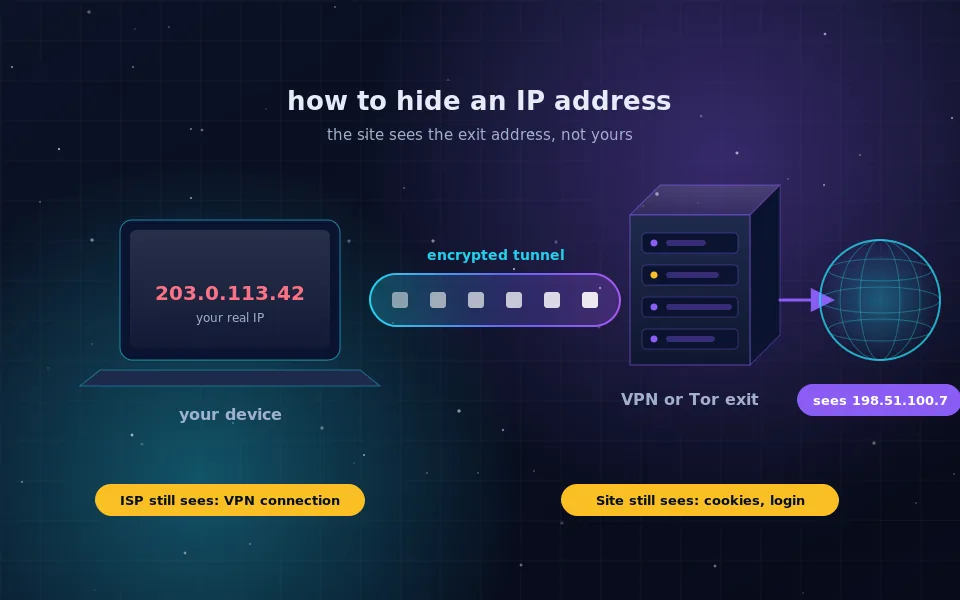
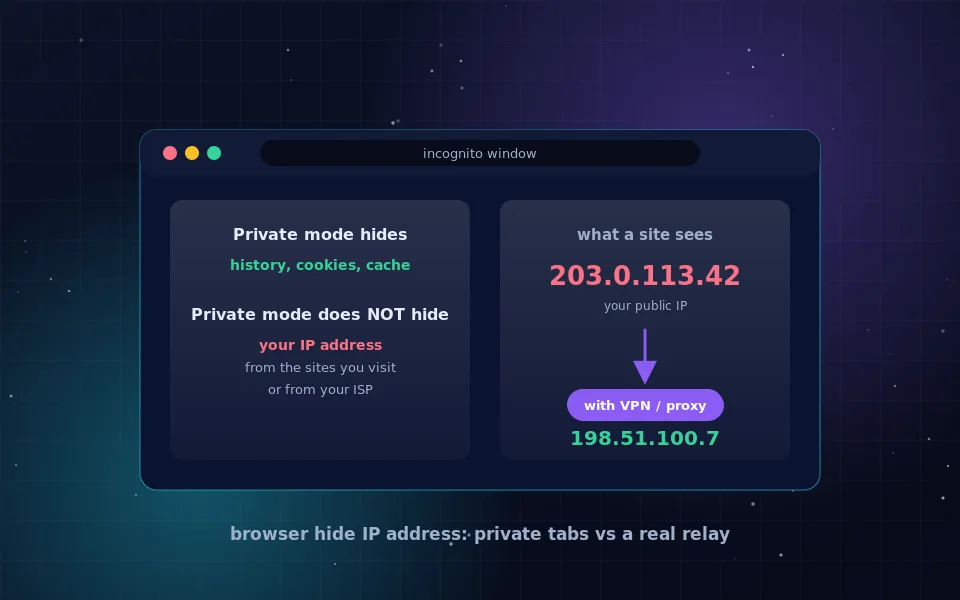
Every request your iPhone makes carries the public address assigned by your Wi-Fi network or your carrier. When you hide your IP address on an iPhone, you route those requests through another server first, so the website records that server's address. Apple provides two ways to do this without an app, and any VPN provider gives you a third.
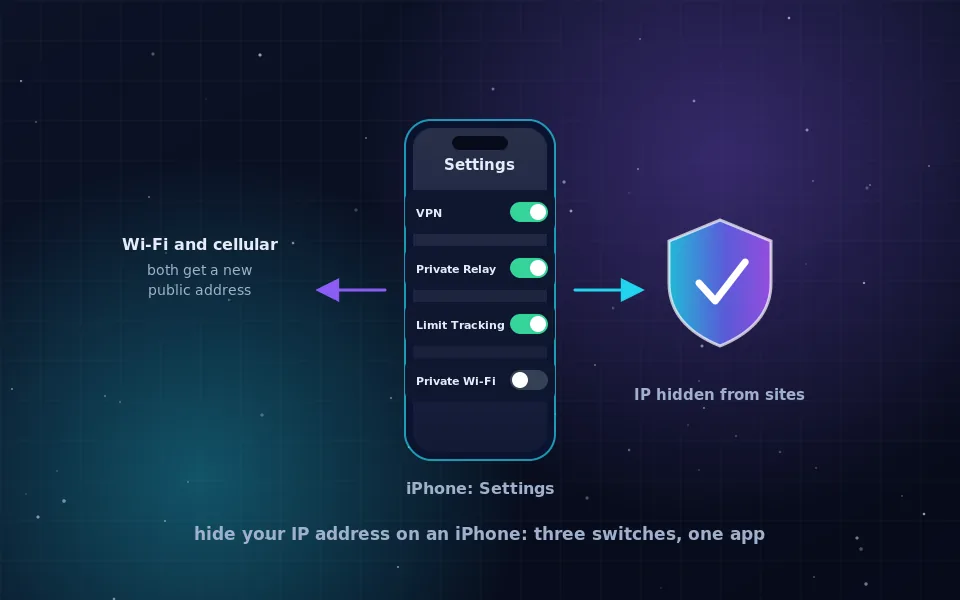
The three methods differ in how much of the phone they cover. Limit IP Address Tracking covers known trackers in Safari and Mail. iCloud Private Relay covers all of Safari and some app traffic. A VPN covers every app, including games, banking and messaging.
Method 1: Limit IP Address Tracking
This switch has been present since iOS 15 and costs nothing. When it is on, Safari and Mail send traffic to known tracking domains through an Apple relay, so trackers see a generic address for your region instead of yours. Regular websites still see your real address.
- Open Settings and tap Wi-Fi.
- Tap the info button next to the network you are connected to.
- Turn on Limit IP Address Tracking.
- Go back to Settings, tap Cellular, then Cellular Data Options, and turn on the same switch.
Because the setting is stored per network, you need to repeat step 3 for each Wi-Fi network you join regularly. It is a sensible default, but on its own it does not hide your address from the sites you actually visit.
Method 2: iCloud Private Relay
Private Relay is part of paid iCloud plans and works in Safari. Apple documents that the request passes through two separate relays: the first knows your address but not the site, the second knows the site but not your address. Websites see an address from your general region, and Apple lets you choose between keeping your rough location or a wider country-level location.
To turn it on:
- Open Settings and tap your name at the top.
- Tap iCloud, then Private Relay.
- Turn Private Relay on.
- Tap IP Address Location and choose Maintain General Location or Use Country and Time Zone.
Two limits matter in practice. Some networks, particularly at schools and workplaces, block Private Relay, and your iPhone will tell you when that happens. It also does not work in every country, and Apple maintains the list on its support site. When you need the same protection on an iPad or Mac, the setting is in the same place on those devices.
Method 3: a VPN app for everything on the phone
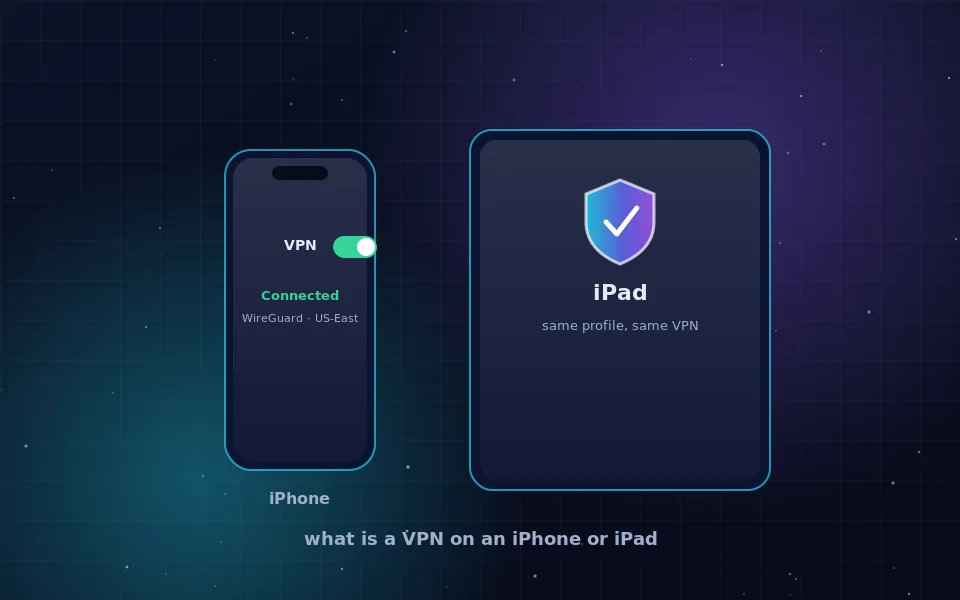
A VPN app installs a profile that sends all traffic from the phone through one encrypted tunnel. Every app then appears to come from the VPN server. This is the only method that changes the address seen by third-party apps such as social networks, games and shopping apps.
- Install the official app from the App Store. Proton VPN and Mullvad both publish iPhone apps on their official sites, protonvpn.com and mullvad.net, and both have public no-logs policies.
- Open the app and allow it to add a VPN configuration when iOS asks.
- Connect to a server, then look for the VPN badge in the status bar.
- In the app's settings, turn on the kill switch or always-on option so that traffic stops if the tunnel drops.
Once the profile exists you can also toggle the connection from Settings, VPN, without opening the app. If you want to understand what the profile does under the hood, the VPN on iPhone and iPad hub covers that in detail.
Wi-Fi versus cellular
Your iPhone holds two public addresses over a day: one from the Wi-Fi network and one from the carrier. Switching between them already changes what a website sees, which is why turning Wi-Fi off can get you past a rate limit. It is not privacy, because both networks know exactly which account the address belongs to.
Private Relay and a VPN work on both connection types. Limit IP Address Tracking has to be switched on separately for Wi-Fi and for cellular. A common mistake is to enable it on home Wi-Fi and assume it follows you onto mobile data.
Location is a separate setting
Hiding your IP address hides your network location. It does nothing about GPS. If Maps, a weather app or a website has permission to use Location Services, it reads your position from the phone's sensors, and no relay changes that.
Review Settings, Privacy and Security, Location Services, and set anything that does not need your position to Never or Ask Next Time. Safari's own location permission is in the same list. Combining a hidden address with tight location permissions gives you the result most people are actually after.
Checking that it worked
After turning any of these on, open Safari and search what is my IP. With Private Relay or a VPN the address and the city should differ from what your provider normally assigns. Then open a third-party app that shows your address, or use a VPN provider's own check page inside that app, to confirm which method covers what.
If the address does not change in Safari, check that Private Relay is not paused for your network. If it changes in Safari but not in an app, that is the expected behaviour of Private Relay, and only a VPN will change it.
What the public documentation says
A few points worth knowing before you rely on any of this:
- Apple's support documentation states that Private Relay is designed so that no single party, including Apple, can see both who you are and what site you are visiting. It matters because it explains why Apple can offer the feature without becoming a logging point.
- The same documentation lists networks and regions where Private Relay is unavailable, and notes that enterprise and parental-control networks may block it. If your protection silently disappears, the network is the usual cause.
- Guidance from the Tor Project explains that the Onion Browser app on iOS uses Tor but, because of platform restrictions, does not provide the same fingerprinting protections as Tor Browser on desktop. Treat it as strong address hiding rather than full anonymity.
- Security vendor reports have repeatedly found free VPN apps in app stores that collect and sell traffic data. The practical takeaway is to install only apps from a provider whose policy and audit history you have read.
One switch today, one app when you need it
Start with the two built-in switches: they take a minute, cost nothing extra if you already pay for iCloud, and remove your address from trackers and from Safari browsing. Install a reputable VPN app only when you need every app on the phone covered or when you travel on networks you do not trust.
For the wider picture of what an address reveals and how to verify each method, read the main guide on how to hide your IP address, then come back to the platform hub for iPhone and iPad when you are ready to choose an app.
Frequently asked questions
How do I hide my IP address on my iPhone for free?
Turn on Limit IP Address Tracking under Settings, Wi-Fi, then the info button next to your network, and repeat under Cellular, Cellular Data Options. It hides your address from known trackers in Safari and Mail at no cost. For every website, a free VPN tier from a provider with an audited no-logs policy or the Tor-based Onion Browser both work.
Does iCloud Private Relay hide my IP address from all apps?
No. Private Relay covers Safari, DNS queries and unencrypted traffic from apps. It does not cover traffic inside most third-party apps, and it is disabled automatically on some networks and in some countries. A VPN app is the only option that covers everything on the phone.
Can websites still see my location if I hide my IP on iPhone?
They can see the approximate region of the relay or VPN server instead of yours. If you have granted a site or app Location Services permission, it can still read your real GPS position, so check Settings, Privacy and Security, Location Services as well.
Does a VPN on iPhone hide my IP address from my mobile carrier?
The carrier sees an encrypted connection to the VPN server and the amount of data, not the sites you visit. It still knows your phone number and account, so a VPN hides your browsing from the carrier, not your identity.
How do I hide my IP address on iPhone 16 specifically?
The steps are identical to other recent models. Settings, your name, iCloud, Private Relay for Safari; Settings, Wi-Fi and Cellular for Limit IP Address Tracking; and a VPN app from the App Store for everything else. Newer models change the hardware, not these menus.
Last reviewed and updated on . Plain text version: /hide-ip-address-iphone.txt.