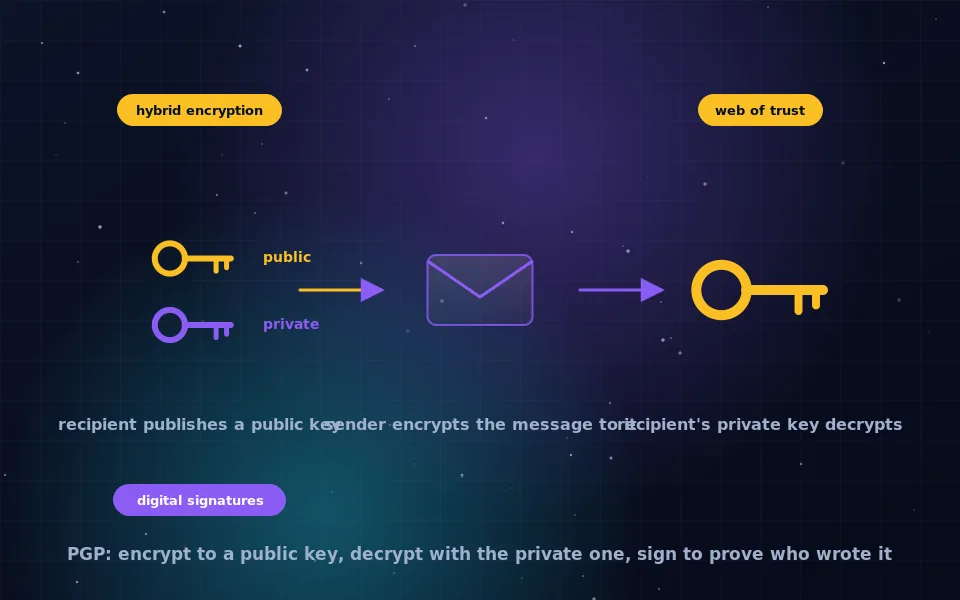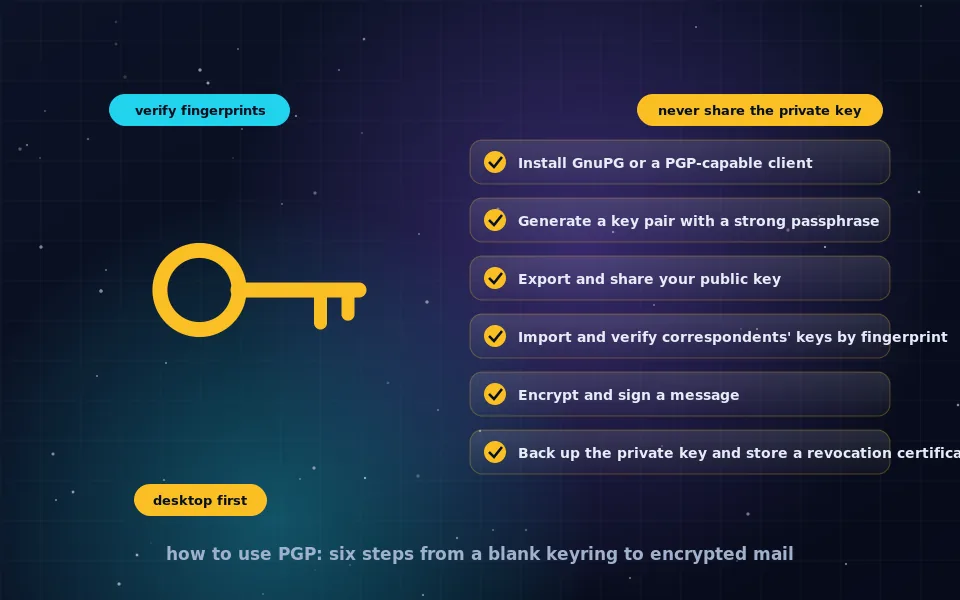
To use PGP, install GnuPG or a mail client with OpenPGP support, generate a key pair protected by a strong passphrase, export your public key and share it with correspondents, import their public keys and verify the fingerprints with them directly, and then encrypt and sign messages in your client, which handles the cryptography once the keys are in place. Back up your private key to offline encrypted storage and create a revocation certificate at the start, because a lost key cannot be recovered.
The PGP concepts guide on this site explains what is happening underneath. This guide is the practical sequence: what to download, how to get a PGP key, how to publish and verify keys, how to encrypt and sign a message, how to use PGP on desktop and mobile, and the habits that protect your key over years of use.
Step one: choose and install software
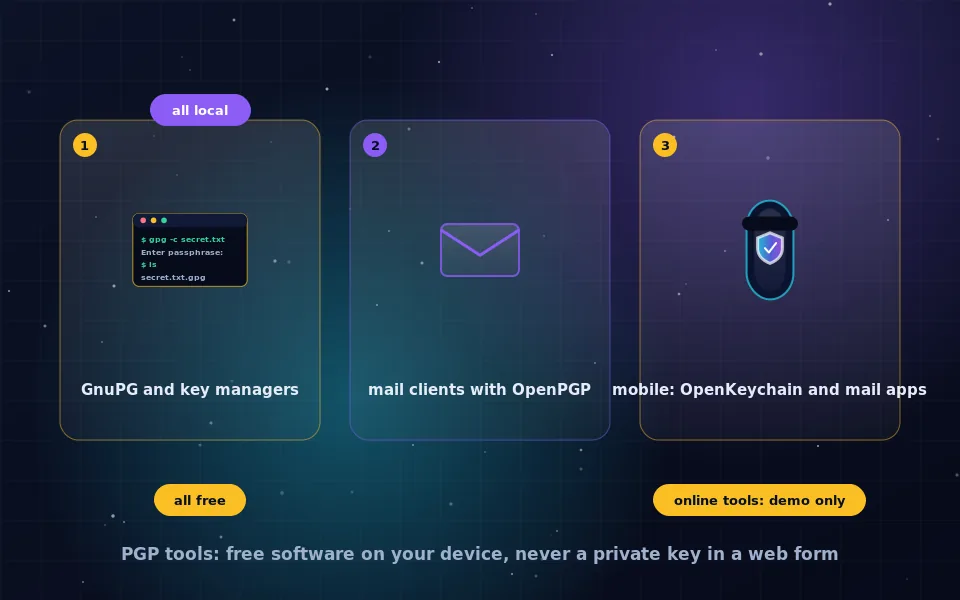
PGP is a format, and you need a program that speaks it. The free reference implementation is GnuPG, which runs on the command line and underlies most graphical tools.
- Linux. GnuPG is installed or available in every distribution. Graphical front-ends such as Kleopatra and Seahorse are in the package repositories, and Thunderbird includes PGP support natively.
- Windows. Gpg4win bundles GnuPG with the Kleopatra key manager and Outlook integration. Thunderbird also works standalone.
- macOS. GPG Suite provides GnuPG, a key manager and Mail integration; GnuPG is also available through package managers. Thunderbird works here too.
- Android. OpenKeychain manages keys and integrates with mail apps such as K-9 Mail and FairEmail.
- iOS. Several mail apps include OpenPGP support; check that the app stores keys on the device and is open source or audited.
- Web mail. Browser extensions add PGP to Gmail and other webmail; end-to-end encrypted providers described in the email encryption guide handle PGP within their own interfaces.
Download from the official project sites only. GnuPG releases are signed, and the project explains how to verify them. The PGP tools guide on this site compares options in more depth and explains why online PGP web pages are not recommended.
Step two: generate a key pair
In your chosen tool, choose to create a new key. You will be asked for:
- Name and email address. These form the user ID others see. Use the address you will encrypt from; you can add more later.
- Algorithm and size. Accept the default if it is a modern elliptic-curve type, or choose RSA at 3072 or 4096 bits. Avoid anything smaller.
- Expiry. Set one, two or three years. Expiry can be extended later, and it limits the damage if you lose control of the key.
- Passphrase. This protects your private key on disk. Make it long and unique; it is the only thing between a stolen key file and your messages.
The software generates the pair, which takes a few seconds. It shows a fingerprint, a string of 40 hexadecimal characters, that identifies the key. Note it.
Immediately after, do two things. Export the private key and store the file on encrypted offline media, as the USB drive guide on this site describes. Generate a revocation certificate and store it alongside; it lets you announce the key as invalid if you ever lose the private key or passphrase.
Step three: share your public key
Export the public key as a text file or block. Give it to correspondents by attaching it to an email, posting it on your website or profile, or uploading it to a key server. Some key servers verify email addresses before publishing; others accept anything, so a key found on a server proves nothing on its own. Publishing your fingerprint somewhere people already trust, such as a personal site or a verified profile, gives correspondents a way to check the key they downloaded is yours.
Step four: import and verify correspondents' keys
Import the public key a correspondent sends you or that you fetch from a server. Before you trust it, verify the fingerprint: read it to them over a call, compare it in person, or check it against a fingerprint they have published somewhere you trust. If the fingerprints match, mark the key as verified in your software. This is the step that stops an attacker from substituting their own key, and it is the step most people skip. Do not skip it.
Step five: encrypt and sign a message
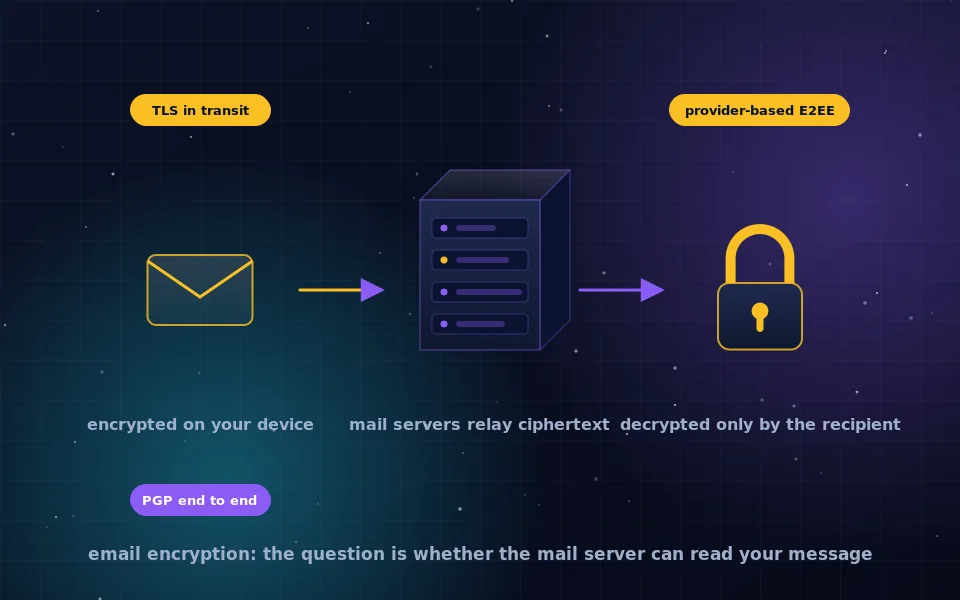
In a PGP-capable mail client, compose a message to a correspondent whose key you have imported and select encrypt and sign. The client encrypts the body and attachments to their public key, signs with your private key after asking for your passphrase, and sends. The recipient's client decrypts with their private key and shows whether your signature verified.
Remember that the subject line and headers are not encrypted; keep the subject neutral. When replying to an encrypted message, ensure the reply is encrypted too, since quoting an encrypted message in a plaintext reply exposes it. Most clients warn about this; heed the warning.
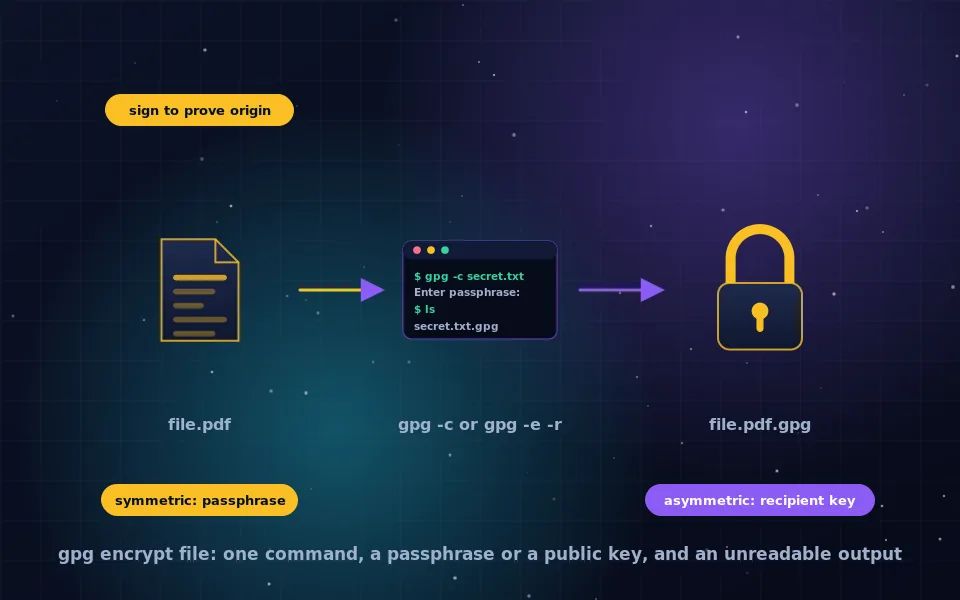
For encrypting a file rather than a message, the GPG file encryption guide on this site walks through the command line.
Step six: maintain your key
- Keep your passphrase in a password manager and nowhere else.
- Keep the offline backup of your private key current if you add subkeys or identities.
- Extend the expiry before it lapses and republish the updated public key.
- If you suspect your private key is compromised, publish the revocation certificate and generate a new key.
- When you get a new device, transfer the private key over an encrypted channel or from your offline backup, never by email.
- Consider keeping the primary key offline and using only subkeys on daily devices, an advanced setup that GnuPG supports and that limits what a compromised laptop can expose.
Using PGP on mobile
PGP works on phones with the tools above, and the trade-offs are real. A private key on a phone is exposed to the phone's risks: loss, theft, malware and cloud backups that may capture the key file. Generate keys on a desktop, transfer only an encryption subkey if your tooling supports it, and use the phone for reading and occasional sending. For conversations that live on a phone, the messaging guides on this site explain why a modern messenger with automatic key handling and forward secrecy is usually a better fit than PGP.
Common mistakes and how to avoid them
- Not verifying fingerprints, which allows key substitution. Verify every key before first use.
- Sending the private key file to anyone or uploading it anywhere. Only the public key is ever shared.
- Losing the passphrase or key with no backup. Back up on day one.
- Replying in plaintext to an encrypted message. Check the encryption indicator before sending.
- Putting sensitive information in the subject line. It is not encrypted.
- Using a weak passphrase because the key is "already encrypted". The passphrase is the encryption.
- Trusting a key because it came from a key server. Servers distribute; they do not vouch.
What the GnuPG project and trainers advise
The steps here follow the software's documentation and the practice of people who teach PGP.
The GnuPG project's documentation describes key generation with modern algorithms, recommends setting expiry dates and creating revocation certificates at creation time, and stresses fingerprint verification as the basis of trust in a public key.
Digital-security trainers who teach PGP to journalists and activists emphasise offline private-key backups, the separation of primary keys from daily-use subkeys, and the habit of checking encryption status before every send, because these are where trainees most often fail.
Mail client developers who ship PGP support document that headers remain unencrypted and warn users about plaintext replies to encrypted threads, reflecting how often that mistake exposes content.
Make your first key today
Install the software for your platform, generate a key with a strong passphrase, back it up and create the revocation certificate, then publish your public key and fingerprint. Ask one correspondent to do the same, verify each other's fingerprints, and exchange an encrypted message. After that first exchange, PGP is just a checkbox in your mail client, and the rest of this section covers the tools and file encryption that build on it.
Frequently asked questions
How do I get a PGP key?
Install GnuPG or a mail client with PGP built in, choose to generate a new key pair, enter your name and email address, pick a modern algorithm such as an elliptic-curve type or RSA at 3072 bits or more, set an expiry, and protect it with a strong passphrase. The software creates a public key to share and a private key to keep.
Where do I download PGP?
The free implementation is GnuPG, available from the GnuPG project for Linux, Windows through the Gpg4win package, and macOS through GPG Suite or package managers. Many mail clients include PGP support. Download only from the official project sites and verify the download signature where offered.
How do I use a PGP key to encrypt an email?
Import your correspondent's public key, verify its fingerprint with them, then compose your message in a PGP-capable client and choose encrypt and sign. The client encrypts to their key and signs with yours. They decrypt with their private key and verify your signature with your public key.
Can I use PGP on a phone?
Yes, with limits. OpenKeychain on Android integrates with several mail apps, and iOS has PGP-capable mail apps. Mobile PGP is workable for reading and occasional sending; key generation and management are easier on a desktop, and the private key on a phone is exposed to that device's risks.
What happens if I lose my PGP private key or passphrase?
You permanently lose the ability to decrypt anything encrypted to that key and to sign as it. Nobody can recover it for you. Back up the private key to encrypted offline storage when you create it, and generate a revocation certificate so you can tell others the key is no longer valid.
Last reviewed and updated on . Plain text version: /encryption/how-to-use-pgp.txt.