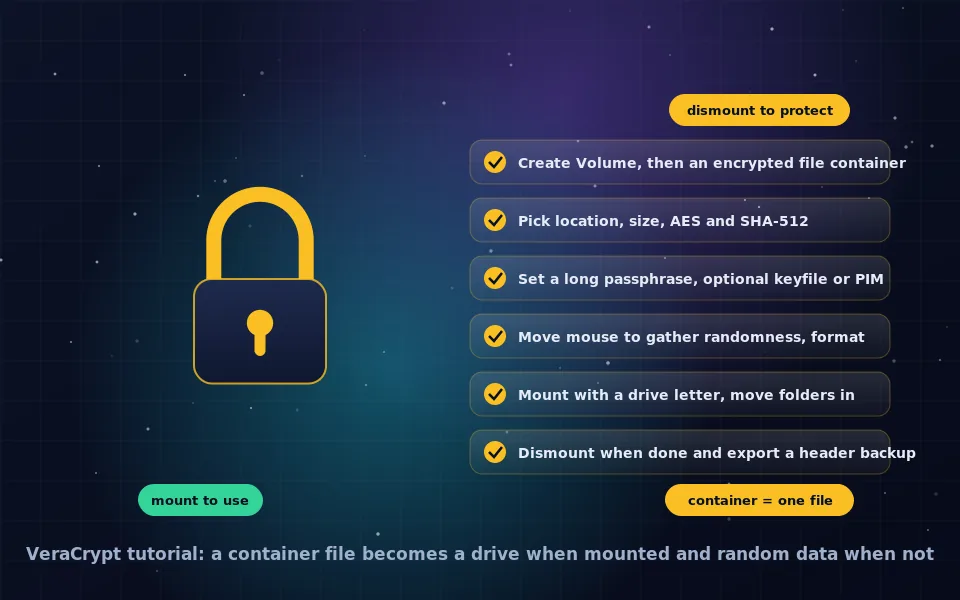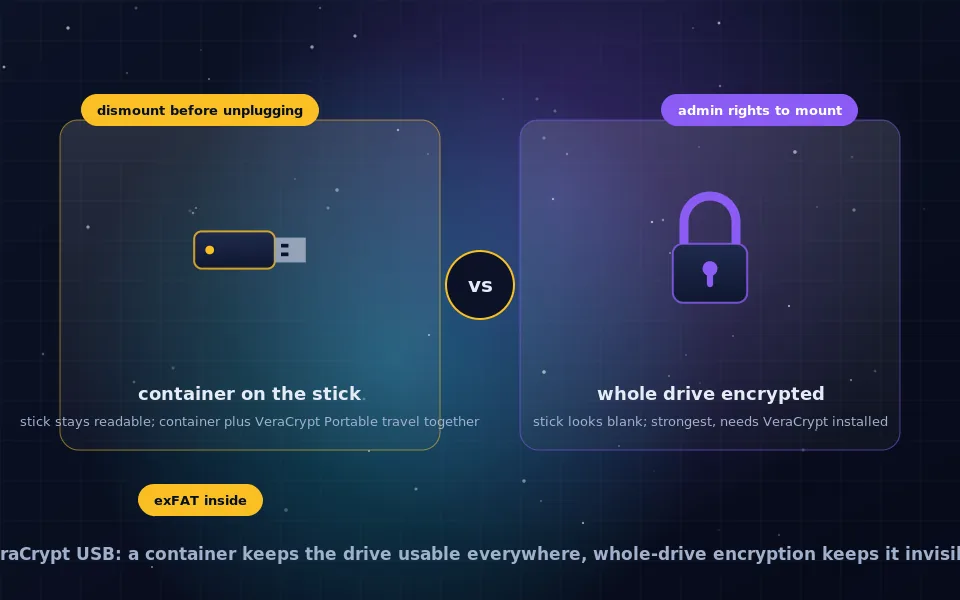
To encrypt a USB flash drive with VeraCrypt, either create an encrypted file container on the drive, which leaves the stick readable so you can carry VeraCrypt Portable alongside the container, or encrypt the whole drive or partition, which makes the stick appear blank and unformatted until mounted with your password. Both are done through Create Volume, both use AES-256 by default, and both open on Windows, macOS and Linux if the volume is formatted with exFAT inside. Mounting requires VeraCrypt on the computer and administrator rights.
USB drives are lost, lent and left behind constantly, and most carry files their owners would rather not lose control of. VeraCrypt is the standard free way to fix that. This guide explains the two approaches and when each fits, the step-by-step procedure for both, how to put VeraCrypt Portable on the stick, choosing a file system so the drive opens everywhere, how VeraCrypt compares with hardware-encrypted drives, and the habits that keep an encrypted stick actually safe.
Container or whole drive
VeraCrypt offers two ways to protect a USB drive, and the choice is practical rather than cryptographic; both are equally strong.
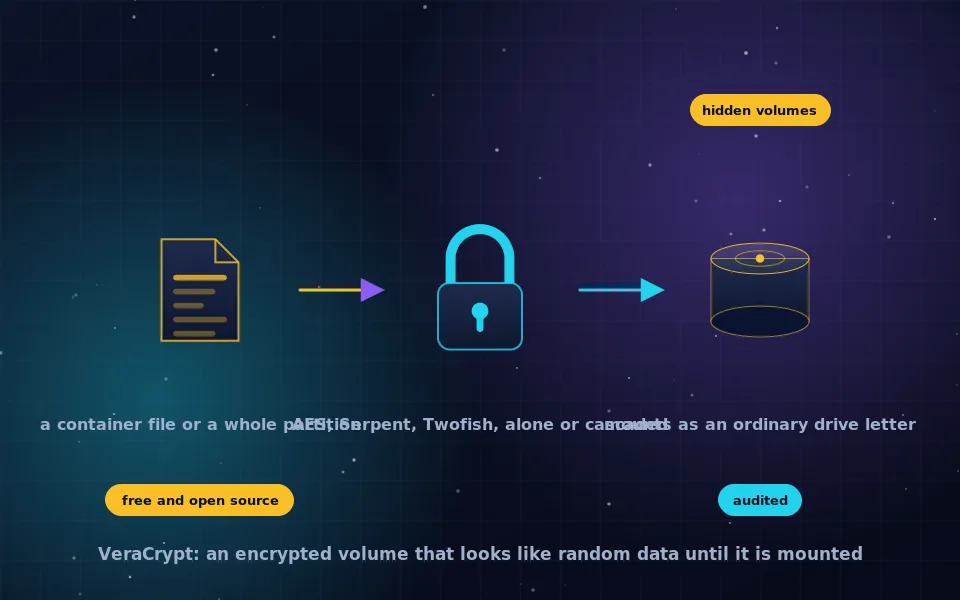
A container on the drive is an encrypted file stored on the stick's normal file system, as the VeraCrypt tutorial on this site describes. The drive itself stays readable: you see one large file with a neutral name, plus anything else you choose to keep unencrypted, including a copy of VeraCrypt Portable for Windows. The container can be copied to another drive as a backup with a simple file copy. Its size is fixed at creation and is limited to 4 GB if the stick is formatted FAT32, so format the stick exFAT first.
Whole-drive or partition encryption encrypts the entire stick or a partition on it. The drive shows as unformatted or blank to any computer, and operating systems may offer to format it, which is a hazard to decline. Nothing is visible, nothing else can be stored, and there is no room for a portable VeraCrypt copy. This suits a stick that only ever visits machines with VeraCrypt installed and where you want no evidence of contents.
Most people are better served by the container approach, and this guide covers it first.
Setup: a container on a USB stick
- Back up anything on the stick, then format it as exFAT using your operating system's disk tool, so the container is not capped at 4 GB and the stick opens on Windows, macOS and Linux.
- Optionally, on Windows, download VeraCrypt from veracrypt.fr, run the installer and choose Extract, pointing it at a folder on the stick. This places VeraCrypt Portable on the drive.
- Open VeraCrypt, click Create Volume, choose Create an encrypted file container, then Standard VeraCrypt volume.
- Click Select File, navigate to the stick, and type a file name for the container. Choose a neutral name if you prefer not to advertise it.
- Keep AES and SHA-512. Set the size, leaving some free space on the stick for the portable folder and for the file system's needs.
- Enter a passphrase of 20 or more characters and store it in your password manager.
- Choose exFAT as the file system inside the container so the mounted volume also works on every platform, or FAT if you need maximum compatibility and no file exceeds 4 GB.
- Move the mouse to gather randomness, click Format, and wait; VeraCrypt writes random data across the whole container, which on a slow stick takes a while.
- Mount the container, copy in your files, and dismount before unplugging.
Setup: whole-drive encryption
- Back up the stick; this process destroys everything on it.
- Open VeraCrypt, click Create Volume, choose Encrypt a non-system partition/drive, then Standard VeraCrypt volume.
- Click Select Device and choose the USB drive or its partition. Check the size and label carefully; selecting the wrong device encrypts the wrong disk.
- Choose Create encrypted volume and format it. The alternative, Encrypt partition in place, preserves existing data and is slower and available on Windows only.
- Keep AES and SHA-512, set the passphrase, choose exFAT inside for cross-platform use.
- Move the mouse, click Format, and wait.
- To use the stick, open VeraCrypt, Select Device, choose the drive, and Mount. When the operating system offers to format the unrecognised drive on insertion, always decline.
Carrying VeraCrypt Portable
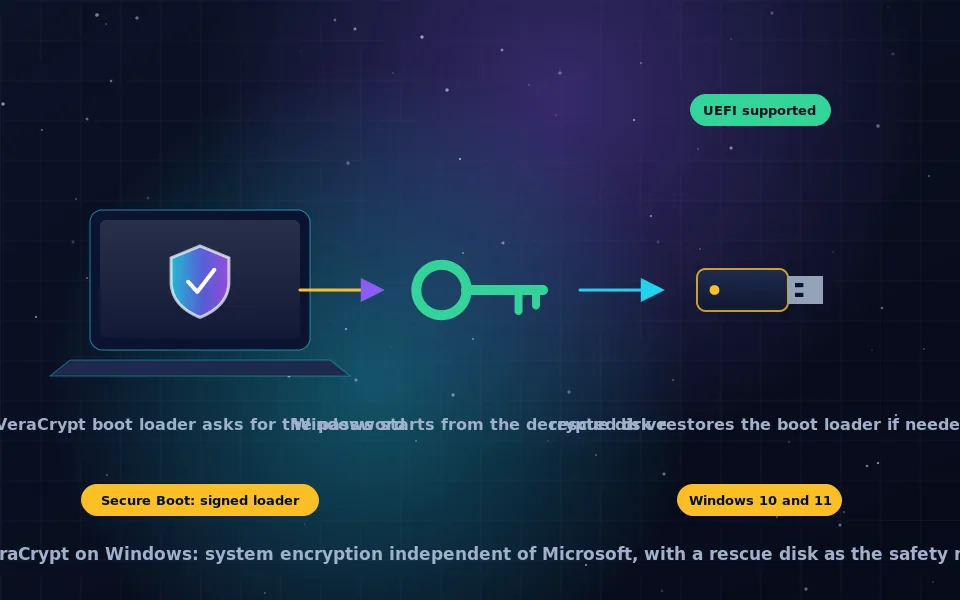
VeraCrypt Portable, produced by the installer's Extract option, is a folder of program files that runs without installation on Windows. Placed on the unencrypted part of the stick next to a container, it lets you mount the container on any Windows PC where you have administrator rights, because the driver must be loaded each time. It leaves nothing behind. It does not work without admin rights, and there is no portable mode for macOS or Linux, which need VeraCrypt installed as the Linux and Mac guide on this site describes. The VeraCrypt Windows guide covers the extraction step.
File systems for a drive that travels
Two file systems are involved: the stick's own, which matters for the container approach, and the one inside the volume. exFAT is the right answer for both when the drive will meet Windows, macOS and Linux, since all three read and write it and it has no 4 GB file limit. FAT32 is universally compatible but caps files at 4 GB and therefore containers too. NTFS is read-only on macOS by default, and APFS and ext4 are single-platform. The Linux and Mac guide on this site has the full compatibility table.
VeraCrypt versus hardware-encrypted drives
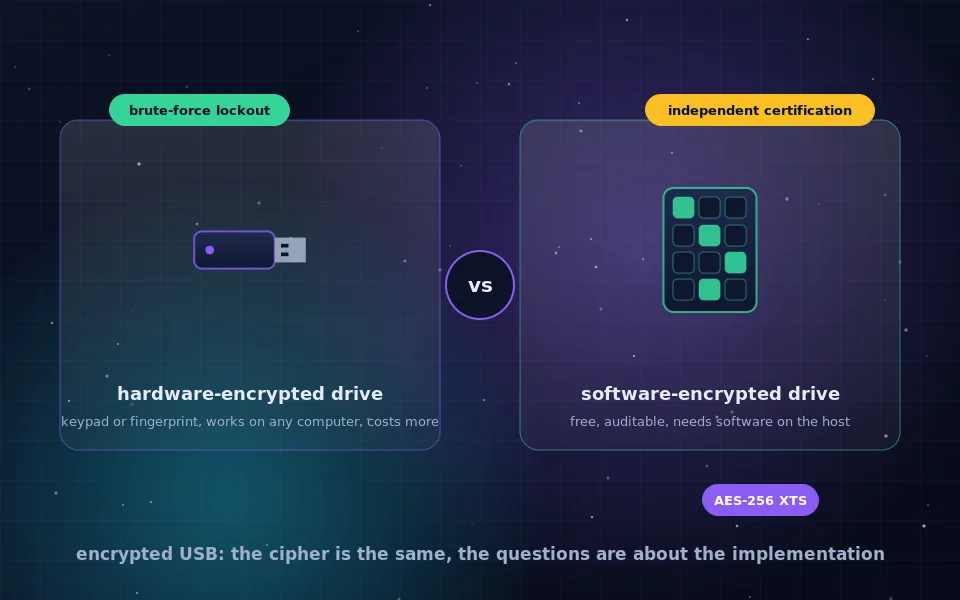
Hardware-encrypted USB drives with keypads or fingerprint readers unlock without software and without administrator rights, which is their real advantage, and cost several times more per gigabyte. Their weaknesses are closed firmware that cannot be inspected and a history of models with flawed implementations. VeraCrypt on an ordinary stick is open source, audited, free and as strong as the passphrase, and needs VeraCrypt and admin rights on the host. The encrypted USB drive guide on this site compares the options in depth; a reasonable approach for the highest-value data is a VeraCrypt container on a hardware-encrypted drive, so that either layer alone must fail.
A seven-point USB checklist
- Format the stick exFAT before creating a container.
- Use a passphrase of 20 or more characters and keep it in a password manager.
- Choose exFAT inside the volume for cross-platform use.
- Always dismount in VeraCrypt before unplugging; pulling a mounted volume can corrupt the file system inside.
- Export a header backup and keep a backup copy of the container file itself; a lost or failed stick loses everything on it.
- Decline any offer to format the drive when a whole-drive encrypted stick is inserted.
- Keep VeraCrypt Portable on the stick updated alongside your installed copy.
What the VeraCrypt project and security practitioners say
The guidance here follows VeraCrypt's documentation and standard practice for portable encrypted media.
VeraCrypt's documentation describes file containers and non-system partition or device encryption as the two ways to protect removable drives, the portable mode's Windows-only operation with administrator rights, and the requirement to dismount before removal.
The project notes that the FAT file system limits container and file sizes to 4 GB and documents exFAT and NTFS as alternatives, with cross-platform readability determined by the host operating systems.
Security practitioners recommend software encryption such as VeraCrypt for removable media because it is auditable and independent of drive firmware, and describe hardware-encrypted drives as the option when host software or admin rights are unavailable.
Make the stick safe to lose
Format it exFAT, put a container and VeraCrypt Portable on it, choose a passphrase you will remember, and from then on a lost flash drive costs you the price of a flash drive. Keep a copy of the container somewhere else, dismount before you unplug, and the stick in your pocket can carry anything.
Frequently asked questions
How do I encrypt a USB drive with VeraCrypt?
Either create an encrypted file container on the drive, leaving the drive itself readable so you can also store VeraCrypt Portable on it, or encrypt the whole drive or partition, which makes the stick appear blank until mounted. Both use Create Volume in VeraCrypt; the container route is more flexible and the whole-drive route is more thorough.
Is VeraCrypt good for USB flash drives?
Yes. It is free, open source, audited, and works on Windows, macOS and Linux, so an encrypted stick opens on any of them. It is the standard software alternative to hardware-encrypted drives and stronger than most of them, provided you use a long passphrase.
Can I run VeraCrypt from the USB drive itself?
On Windows, yes. Extract VeraCrypt Portable to the unencrypted part of the stick alongside a container, and run it on any Windows PC where you have administrator rights. There is no portable mode on macOS or Linux; those need VeraCrypt installed.
Should the USB drive be a container or fully encrypted?
Use a container if you want to carry VeraCrypt Portable on the same stick, keep some unencrypted files, or resize the encrypted part by making a new container. Encrypt the whole drive if you want nothing visible and do not need the stick to work on machines without VeraCrypt.
Can I use VeraCrypt as USB encryption software on any computer?
Mounting requires VeraCrypt on the computer and administrator rights. On your own machines, install it. On other people's Windows machines, VeraCrypt Portable works if you have admin rights. Without admin rights or on a locked-down machine, you cannot mount the volume; hardware-encrypted drives are the alternative for that case.
Last reviewed and updated on . Plain text version: /encryption/veracrypt-usb.txt.