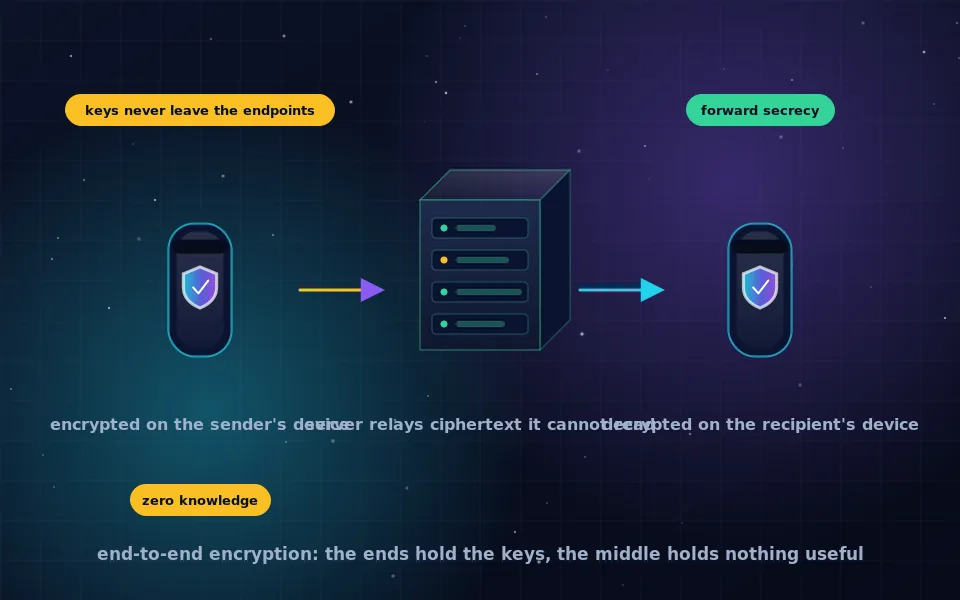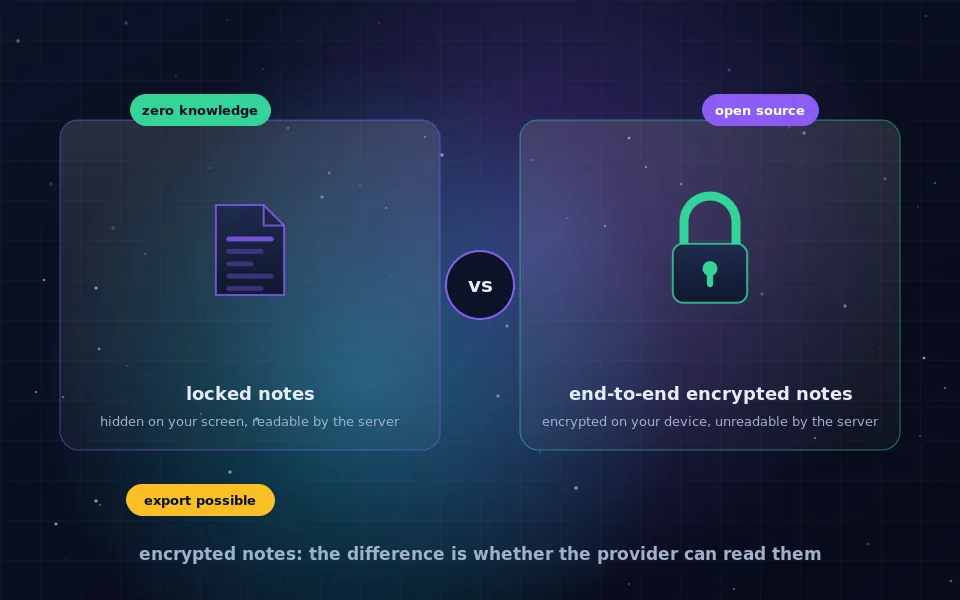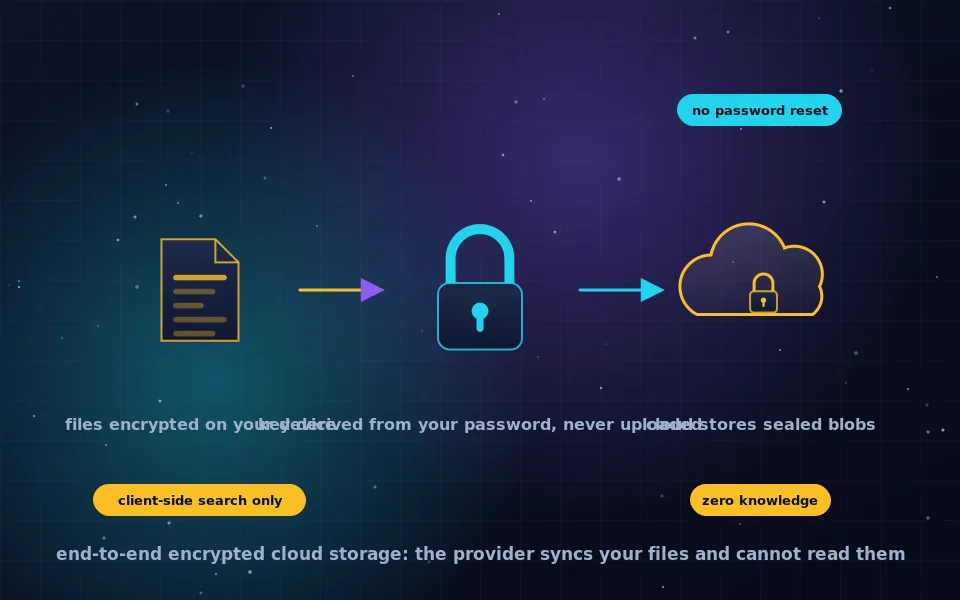
End-to-end encrypted cloud storage encrypts your files on your own device, with a key derived from your password or held only on your devices, before they are uploaded, so the provider stores and syncs ciphertext it cannot read; the same idea is called zero-knowledge or client-side encryption. Mainstream drives such as Google Drive, Dropbox and OneDrive encrypt files in transit and at rest but hold the keys, so they can read, index, scan and hand over your data. Choosing zero-knowledge storage means accepting no password recovery and fewer server-side conveniences in exchange for a provider that cannot look inside.
Cloud storage is where most people's documents, photos and backups now live, which makes the question of who can open those files a practical one. This guide explains how end-to-end encrypted cloud storage works, why the big drives do not qualify, what features you give up, what free options exist, how to evaluate a provider, and how to set one up so that the protection actually holds.
What ordinary cloud storage encrypts
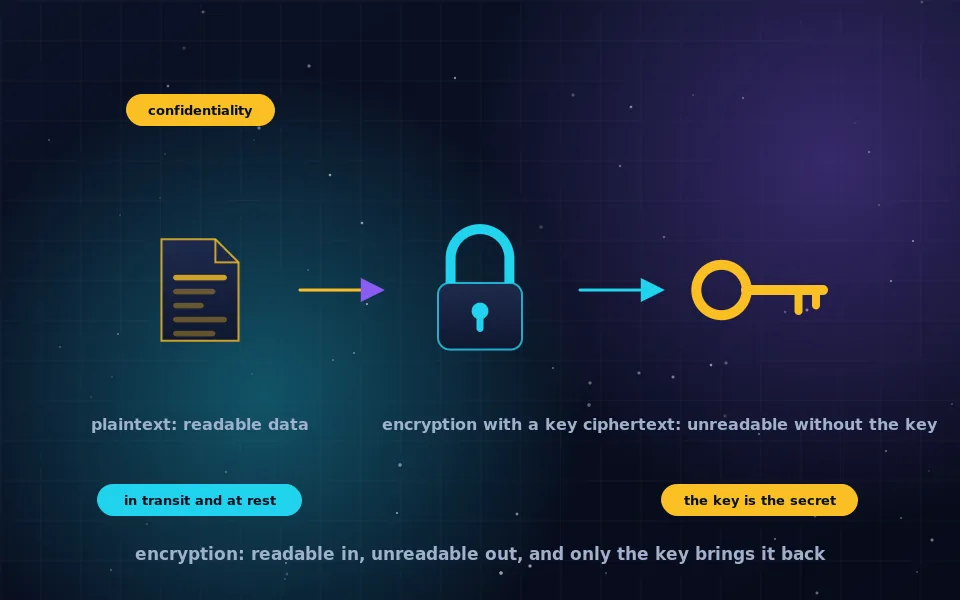
Every reputable cloud drive encrypts data in transit with TLS and at rest on its servers. Those protections defeat network eavesdroppers and stolen disks. They do not defeat the provider, because the provider decrypts your files to generate thumbnails, index content for search, scan for malware and policy violations, and respond to legal requests. A breach of the provider's systems, an insider, or a compelled disclosure exposes readable files. This is the same distinction the end-to-end encryption guide on this site draws between encryption in transit and encryption that the service itself cannot undo.
How end-to-end encrypted storage works
- When you create an account, the client on your device generates encryption keys and encrypts them with a key derived from your password using a slow key derivation function. The provider receives only the encrypted key material and a verifier that lets you log in without revealing the password.
- When you add a file, the client encrypts its contents and usually its name with a per-file key using an authenticated cipher such as AES-GCM, and encrypts that per-file key with your master key.
- The encrypted blob is uploaded. The provider stores it, replicates it and syncs it to your other devices.
- On another device, you enter your password, the client derives the master key, decrypts the file keys and then the files, all locally.
- Sharing works by encrypting a file key to the recipient's public key, so the provider still never sees the file.
The provider knows how many files you have, their sizes, when they change and which devices connect. It does not know their names, contents or types unless the design leaves those unencrypted, which is one thing to check.
What you give up
Zero knowledge is a trade, and the losses follow directly from the provider being blind.
- No password recovery. If the provider cannot decrypt your data, it cannot hand it back when you forget your password. Providers offer a recovery key or phrase at signup; store it offline or you can lose everything.
- No server-side content search. Search runs on your device over locally decrypted metadata, or on file names only.
- Limited previews and web features. Web access requires entering your password so the browser can decrypt; previews are rendered client side.
- Fewer integrations. Third-party apps cannot read your files through the provider's API.
- Sharing friction. Public links must carry the key in the URL fragment or require the recipient to have an account.
- Speed and cost. Client-side encryption adds work on your device, and zero-knowledge providers are often smaller companies with higher prices per gigabyte.
Two ways to get it
A zero-knowledge provider. Services built around client-side encryption, such as Proton Drive, Tresorit, Filen, Sync.com and Internxt, provide the whole experience: apps, sync, sharing, all encrypted end to end. Simplest, and you rely on that provider's continued existence and honesty about its design.
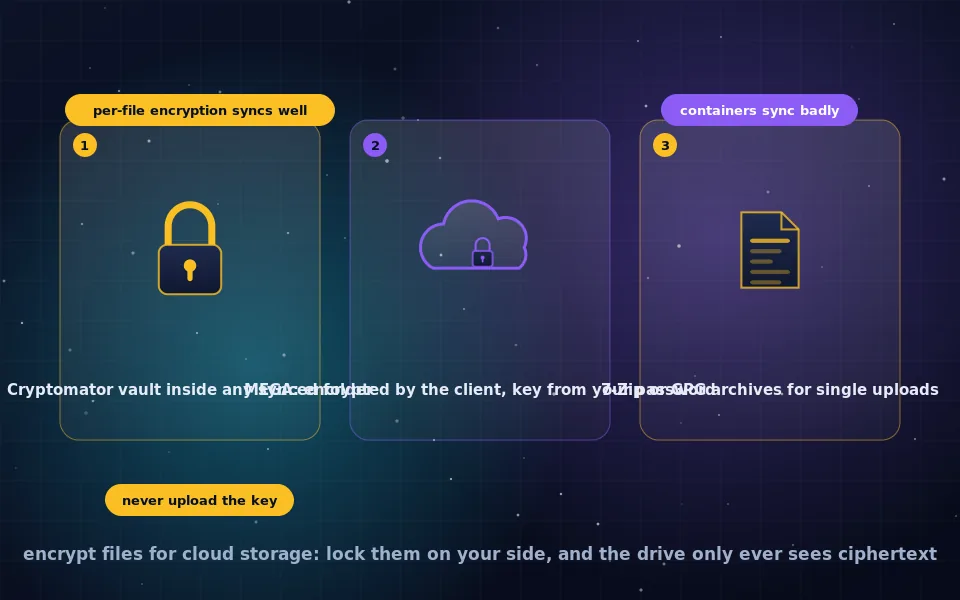
Encrypt on top of an existing drive. Tools such as Cryptomator create an encrypted vault folder inside Dropbox, Google Drive, OneDrive or any synced folder, encrypting each file individually so sync remains efficient. You keep the storage you already pay for and add a layer the provider cannot open. The encrypt-files-for-cloud guide on this site covers this route, including MEGA's built-in encryption and Dropbox.
Both approaches deliver zero-knowledge storage. The first is more convenient; the second is more flexible and cheaper.
Free encrypted cloud storage
Several zero-knowledge providers offer free tiers, typically a few gigabytes, sufficient for documents and a modest photo set. Cryptomator is free and open source, so the free tier of any mainstream drive becomes free encrypted storage with it. MEGA offers a larger free tier with client-side encryption, with caveats the companion guide discusses. For backups of a full photo library or a computer, paid plans are unavoidable, and a paid plan from a smaller zero-knowledge provider costs more per gigabyte than a mainstream one.
A nine-point checklist for choosing a provider
- Does the provider state plainly that it cannot access your files and cannot recover them if you lose your password?
- Are the client apps open source, so the encryption can be inspected?
- Has an independent audit of the client and the cryptographic design been published, and were the findings fixed?
- Are file names and folder structure encrypted, not just contents?
- Which key derivation function protects the master key, and does the provider document its parameters?
- Is there a recovery key mechanism, and is it stored only with you?
- How does sharing work, and does the provider ever see a decrypted file during it?
- Where is the company based, how is it funded, and what does its privacy policy say about metadata?
- Does the app cover every platform you use, including a way to export all files if you leave?
Setting it up so the protection holds
- Use a long, unique password generated by a password manager; the key derivation cannot compensate for a weak one.
- Write the recovery key on paper or store it in an encrypted, offline location, as the USB guide on this site describes, and test that it works before you need it.
- Enable two-factor authentication on the account; it protects the account, and the encryption protects the data, and you want both.
- Check that your device backups do not capture an unencrypted copy of the synced folder.
- Clean metadata from sensitive files before uploading if the file name and content are not the only thing you care about, as the metadata guide explains.
- Keep an offline backup. Encrypted cloud storage is a copy, not the only copy, and a lost password plus a lost recovery key is a total loss.
What providers and reviewers say
The account above follows how zero-knowledge providers describe themselves and how independent reviewers evaluate them.
Zero-knowledge providers uniformly document that they cannot decrypt user data, cannot reset a forgotten password without loss of data, and derive keys on the client, and several publish audits and source code to support the claim.
Mainstream cloud providers document encryption in transit and at rest under keys they manage and describe content scanning and legal-request handling that presuppose access to plaintext.
Security reviewers evaluating encrypted storage rank open-source clients and published audits above marketing claims, treat unencrypted file names as a meaningful leak, and note that the most common failure is a user losing the recovery key rather than any flaw in the encryption.
Decide who should hold the key
If your files are things you would not want the provider, its employees, a breach or a subpoena to expose, move them to storage where only you hold the key, either a zero-knowledge provider or an encrypted vault on the drive you already use. Save the recovery key first. Everything else about cloud storage stays the same; only the answer to who can open it changes.
Frequently asked questions
What is end-to-end encrypted cloud storage?
Cloud storage where files are encrypted on your device with keys derived from your password or held on your devices, before upload. The provider stores and syncs ciphertext it cannot decrypt. It is also called zero-knowledge or client-side encrypted storage. Ordinary cloud drives encrypt files too, but hold the keys themselves.
Is Google Drive, Dropbox or OneDrive end-to-end encrypted?
No. They encrypt in transit and at rest with keys they control, so they can index, preview, scan and hand over your files. Some offer an encrypted vault feature for a subset of files. For end-to-end protection on these services you must encrypt files yourself before uploading.
What is the most secure cloud storage for personal use?
A zero-knowledge provider with open-source clients and a published independent audit, such as Proton Drive, Tresorit, Filen or a Cryptomator vault on any drive. Judge by whether the provider states it cannot recover your data if you lose your password; that statement is the tell.
Is there free encrypted cloud storage?
Yes. Several zero-knowledge providers offer free tiers of a few gigabytes, and Cryptomator is free software that adds end-to-end encryption to the free tier of any mainstream drive. Free plans are fine for documents; large media libraries need a paid plan.
What do I lose with zero-knowledge cloud storage?
Server-side search of file contents, web previews without entering your password, some sharing conveniences, third-party integrations, and password recovery. If you forget the password and have no recovery key, the data is gone. Speed and storage limits vary by provider.
Last reviewed and updated on . Plain text version: /encryption/encrypted-cloud-storage.txt.